
A comprehensive, non-invasive security audit for Windows 11 — 27 sections covering everything from Windows Update status to TLS cipher suites and remote-access exposure, scored with a category-weighted model, tracked over time, and rendered as a searchable HTML dashboard. Read-only: every check inspects system state, none of them change it.
Nothing is trusted on a name. Trusted root certificates are validated by SHA-1/SHA-256 thumbprint against a manually-verified allowlist — never by their Subject CN, which any malicious self-signed certificate could copy. Since v5.6.0 the same rule covers the rest of the audit: services, scheduled tasks, drivers, firewall rules and network processes are judged by their anchored file path, their Authenticode signature and the permissions on their folder — never by a name or a word found in a path (a folder called
Microsoftorsystem32proves nothing: anyone can create it). The score model itself was rebuilt once already, after the original version produced a 1/100 score on a genuinely well-hardened machine.
As of v5.1.0, the script's own console output, HTML/TXT/JSON/CSV reports, category names, and -Category values are all in English. A handful of checks whose input is Windows itself — auditpol, wbadmin — parse both the English and French wording those commands can return, so the script keeps working correctly on French-language Windows installs too, not just English ones. Shadow copies no longer depend on text parsing at all: since v5.4.2 they are read through CIM (Win32_ShadowCopy / Win32_ShadowStorage), which is language-independent — vssadmin is kept only as a fallback. Since v5.6.0, net accounts (whose labels are translated) is no longer the only source of the password policy: when its output is not recognized, the same values are read from the exported local security policy (secedit, language-independent keys), and firewall rules without a program are recognized by their resource group instead of an English display name.
- Overview
- Screenshots
- How the score works
- The 27 sections
- What's new in v5.7
- What's new in v5.6
- History and regression detection
- Using the
-Categoryfilter - Prerequisites
- First run
- Command-line parameters
- Generated reports
- Multi-machine deployment
- Troubleshooting
Check-Security.ps1 runs a single-pass audit of a Windows 11 machine's security posture: Windows Update status, firewall, Defender, account/password policy, BitLocker, network protocol exposure, scheduled tasks, startup programs, VBS/Credential Guard/HVCI, TLS/cipher configuration, certificate trust store, ransomware resilience (Shadow Copy/VSS), legacy name resolution and IPv6 tunnels, Defender protections, PowerShell 2.0, remote-access services, stored credentials, and more — 27 sections in total.
It is entirely read-only. No check modifies a setting, stops a service, or writes to the registry outside of its own report/history files — it only reads and reports.
Since v5.5.0, findings on the newest checks end with a hint naming the matching command of the separate Toolbox-SystemCommands launcher (for example Fix with Toolbox-SystemCommands > Quick security > 'Disable PowerShell 2.0'). Check-Security itself still never fixes anything: it detects, the Toolbox fixes. The hints can be switched off with $ShowToolboxHints.
v5.6 is an audit release. It follows a line-by-line technical review of the script, then checks on a real Windows 11 machine: wrong or silently lost results were fixed, trust was moved from names to verifiable facts, a few checks were added, and results that could not be obtained no longer count as a pass. No weight and no category name changed, and every existing check keeps its name. See What's new in v5.6.
v5.7 adds eight read-only checks — UDP listeners, the support lifecycle of the Windows build, the Secure Boot 2023 certificate renewal, Windows Update policies, the age of Defender's platform and engine, the SMBv1 client, process-creation auditing and an application-control overview — and changes no weight, no category name and no existing check. See What's new in v5.7.
Each finding is recorded with a category, a status (OK / WARN / FAIL / INFO), and a plain-language detail. These roll up into a single weighted score out of 100, and every run is compared against the previous one to surface what changed.
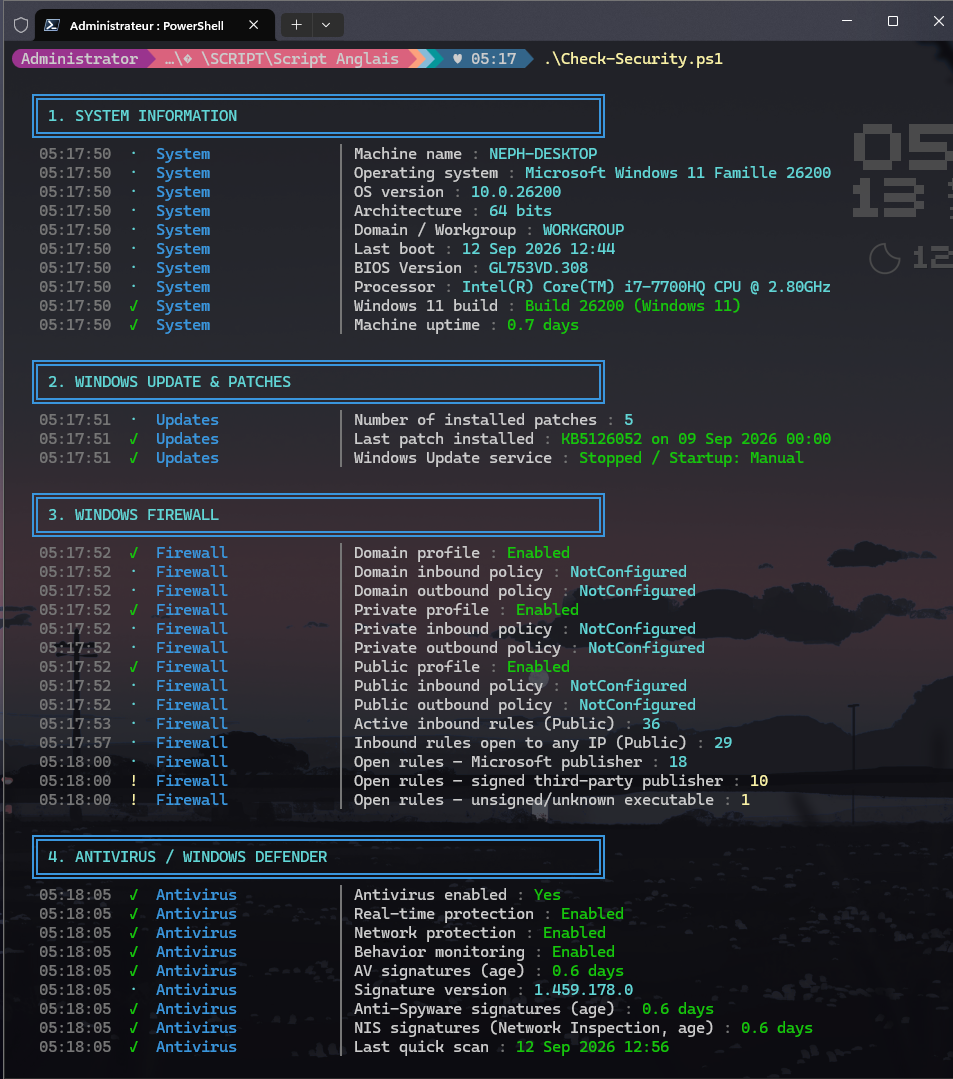
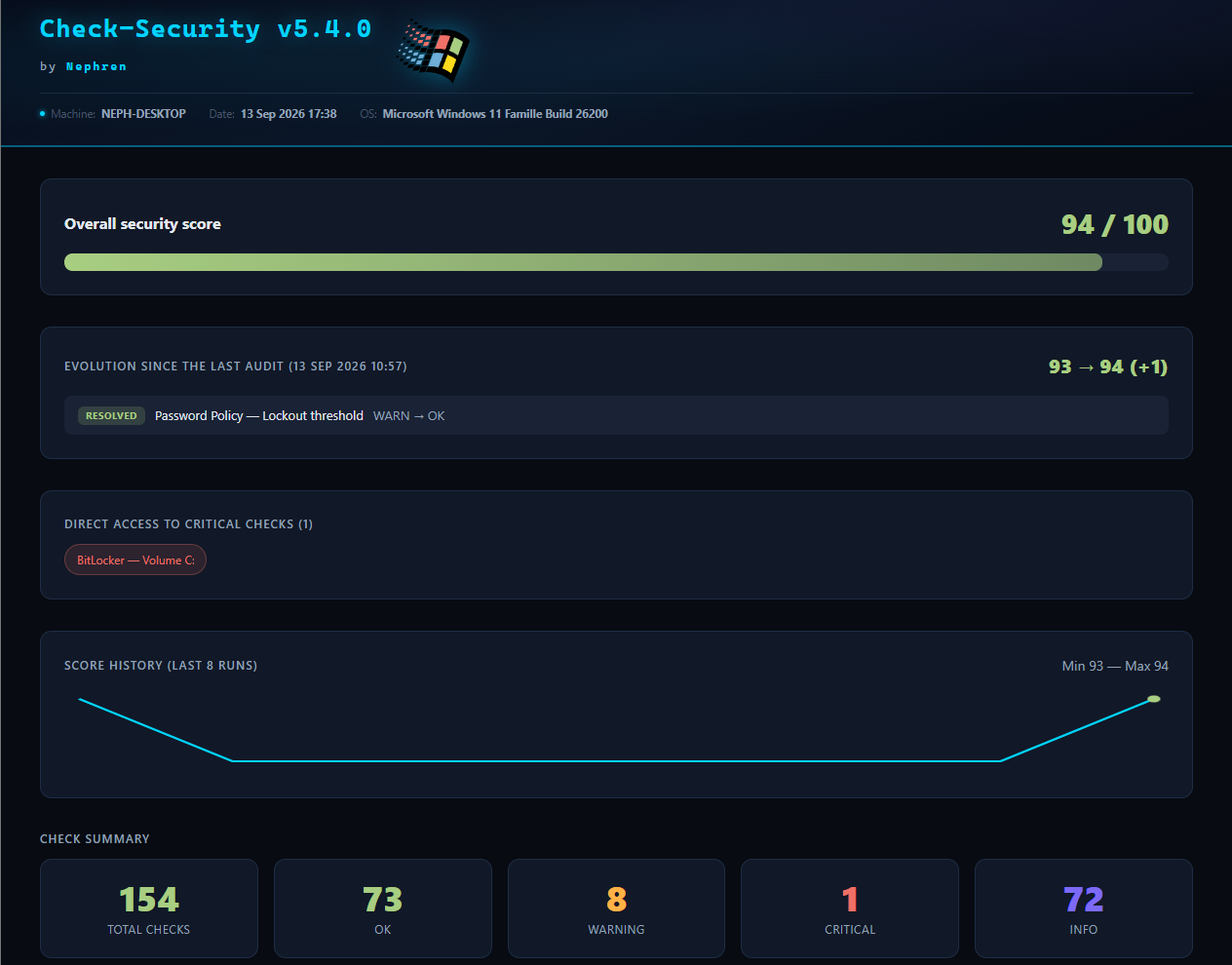
More in screenshots/ — console output, section-by-section, and the full HTML report.
The scoring model went through a documented rewrite (v4.1) after the original "100 − sum of penalties" approach produced a 1/100 score on a machine that actually had HVCI, LSA Protection, Secure Boot, and 18 ASR rules active — penalties stacked without limit as more checks were added, regardless of overall posture.
The current model is a category-weighted success rate:
For each category C:
    OK / INFO → 1.0   (fully passed)
    WARN      → 0.5   (half credit)
    FAIL      → 0.0   (failed)
    rate(C) = average of the above over every check in that category
              (a check that could not be performed is left out, see below)

Score = Σ(weight(C) × rate(C)) / Σ(weight(C)) × 100
Penalties can no longer stack without limit as checks are added, and the weights express the importance of each category. One consequence to know: a check weighs the weight of its category divided by the number of checks in that category, so one FAIL in a category with only a few checks moves the score more than one FAIL in a large one (a failed BitLocker volume costs about two points on a machine with three volumes; a failed check among about twenty network checks costs a fraction of a point). That is why the summary and the "new FAIL" alert (see History) list every failing check individually instead of relying on the score alone.
Checks that could not be performed. Since v5.6.0, a result such as Unable to read or Not available (feature absent, read error) is flagged Indeterminate in the JSON export and is left out of the score. Before, it counted as INFO, that is as a full pass, so an unreadable setting could raise the score. The line is still shown in every report.
Category weights (categories not listed default to 1.0):
| Category | Weight | Category | Weight |
|---|---|---|---|
| Antivirus | 1.6 | Certificates | 1.3 |
| BitLocker | 1.6 | Firewall | 1.4 |
| VBS | 1.5 | Network | 1.4 |
| Backup | 1.5 | TLS/SCHANNEL | 1.4 |
| Password Policy | 1.3 | Hardening | 1.4 |
| Accounts | 1.2 | Defender | 1.1 |
| Services | 0.8 | Startup | 0.7 |
| Software | 0.5 |
The intent: a FAIL on BitLocker or antivirus should hurt more than a FAIL on "installed software" — the weights encode that judgment explicitly rather than leaving every check equally important by accident. (Hardening carries a weight but no check reports under that category yet.)
1–5 · System, Windows Update, Firewall, Defender, Accounts
System info + Authenticode signature of the script itself; uptime (aware of Fast Startup, which keeps the kernel session across a shutdown) and a pending restart after an update; last patch age, taken only from patches that carry an installation date (WARN >30 days, FAIL >60); per-profile firewall status — a default inbound action of Allow is a FAIL — and inbound rules read from the effective store (Group Policy and Intune included), including the rules whose profile is Any, classified by publisher signature, built-in resource group or location (never by display name): Microsoft-signed → INFO, third-party/unsigned → WARN, and rules whose program no longer exists listed apart as INFO ("stale"); Defender real-time protection (INFO instead of FAIL when Defender is in passive mode because another antivirus is active, whose Security Center state is decoded), last scan age (WARN >7 days, FAIL >30), ASR rules including Microsoft's three standard-protection rules, 30-day threat detection history; local accounts, password policy, and the built-in Administrator (RID-500) account specifically. Since v5.7: Windows build support status and Windows Update policies (section 2) and Defender platform / engine version (section 4) — see What's new in v5.7.
This checks the local policy Windows would enforce on a future password change — not your current password. Minimum length required by local policy: 0 characters (the Windows out-of-box default) doesn't mean your actual password is 0 characters, or that anything about it is weak — it means that if this account's password were changed tomorrow, Windows wouldn't enforce any minimum at all. You can have a strong, long password in place right now despite a permissive policy here; the script says so explicitly in each result's detail text.
| Check | What it reports |
|---|---|
| Minimum length | WARN below 12 characters — see below for why |
| Maximum / minimum password age | Informational — how often Windows would force a change, and the minimum delay before changing again |
| Lockout threshold | WARN if disabled (0 attempts) — no automatic lockout after repeated failed sign-ins |
| Lockout duration | WARN if configured at under 5 minutes — too short to effectively blunt rapid brute-force bursts. A duration of 0 / "never" means the account stays locked until an administrator unlocks it: the strictest setting, reported OK (it used to be read as "very short") |
Why 12 characters, specifically? That's current mainstream guidance (NIST SP 800-63B, CISA, ANSSI) — the older "8 characters" standard dates from when offline cracking was far slower. On modern GPU hardware, an 8-character NTLM hash — complex or not — can fall to brute force in hours; every additional character multiplies the search space by roughly 95 (the printable ASCII range). 12 is roughly the point where even a sustained offline attack stops being economically worth it, which is why the general trend (NIST included) has shifted from "mandatory complexity" to "length first."
If you want to raise it: net accounts /minpwlen:12 (adjust the number to taste). This is a policy setting, not a fix for anything actively broken — treat a WARN here as a recommendation, not an error. The values are read from net accounts (French and English labels) and, on any other language of Windows, from the exported local security policy (secedit), so the check does not depend on the language.
Local accounts and their password flags. Each local account line ends with Pwd expires: …. Never means the account has a password that never expires (WARN, a hardening recommendation: current guidance such as NIST SP 800-63B no longer asks for forced rotation, so it is a choice you can make knowingly); Yes means it expires; n/a (no password set) is a built-in account that never had a password (Administrator, Guest, DefaultAccount); Managed online is an account linked to a Microsoft or Entra ID account, whose password is managed online. Separately, an enabled local account whose SAM flag says password not required gets a WARN: the flag does not prove the password is empty, it means Windows would allow an empty one, and the script cannot test it without producing a failed sign-in (which would count toward your lockout threshold). If the account does have a password, clear the flag with net user <name> /passwordreq:yes (set a password first if it has none, otherwise you could no longer sign in).
6–10 · UAC, BitLocker, Network, Services, Audit logs
UAC through a decision table: consent levels 1 and 2 (prompt on the secure desktop) are stricter than the default and are OK, level 0 is FAIL, a value that is not set is the Windows default (INFO); remote token filtering (LocalAccountTokenFilterPolicy) is checked. BitLocker: system drive C: → FAIL if off, other volumes → WARN; the volume status, lock status, encryption method and key protectors are read, so a fully encrypted volume whose protection is suspended is a WARN (not "not encrypted"), a locked volume counts as encrypted, and a missing recovery-password protector is a WARN. Network: listening ports classified by exposure (RDP on 0.0.0.0 → FAIL, WinRM → strong WARN); a port is only "normal" when a verified Windows or Microsoft process owns it, the number alone proves nothing, and an unverified process listening on every interface is a WARN; established TCP connections to public IPs enriched with the process name, where a name is only trusted if the process image is verified (Windows folder, valid signature, or a Program Files location that non-administrators cannot modify) — PowerShell is not allow-listed; encrypted DNS (DoH) compares the DNS servers in use with Windows' DoH table and per-interface settings; shares: only the default administrative shares are ignored, so a hidden share such as backup$ is reported; IPv6 firewall exposure; active network profile per interface. Services: every automatic running service is evaluated — Windows components by anchored path, Microsoft-signed services whose location is protected, and all the others are reviewed (location a non-administrator can modify, no valid signature outside Program Files, unquoted path containing spaces, user account). Audit: policy configuration, recent security events (4648 explicit-credential logons, 4720/4726 account creation/deletion) — an unreadable log is Unable to read, no longer "0 events" — and cleared logs (Security 1102, System 104) over 90 days. Since v5.7.1: SMBv1 client feature (section 8, next to the existing SMBv1 server check) and Process creation auditing (event 4688) (section 10).
11–15 · Scheduled tasks, Secure Boot/TPM, PowerShell, Software, Startup
Scheduled tasks. The folder of a task is chosen by whoever creates it, so a task placed under \Microsoft\ is no longer exempt: only its binary counts (a Windows file, or a valid Microsoft signature). Interpreters are recognized by file name (PowerShell 5/7, cmd, wscript, mshta, rundll32, msiexec, certutil, bitsadmin, curl, python, node, wsl…), running tasks are included, and an encoded command, an in-memory download or a hidden window in the arguments is flagged. A task is recognized as yours when its script is in a trusted folder (normalized path), carries a valid Authenticode signature from a publisher in your Trusted Publishers store, or was created by Winhance with a script that only administrators can modify — and the script must be what the task actually runs, not a path that merely appears in its arguments. Since v5.6.0, an elevated task (highest run level, SYSTEM or a service account) that runs a script a non-administrator can modify is no longer trusted by its path alone: whoever can edit the script would get administrator rights (a valid signature from a trusted publisher, or a protective ACL, still counts). Secure Boot and TPM status; PowerShell execution policy (Unrestricted/Bypass is a WARN: Microsoft states the policy is not a security boundary), Script Block Logging/Transcription (downgraded to INFO on a personal machine — these are enterprise forensic tools that add noise without a SOC watching the logs), Smart App Control (state read from the Code Integrity policy; "not exposed by this build" is INFO); installed software inventory; startup programs from both registry autoruns and Startup folders, IFEO hijacking, AppInit_DLLs and, since v5.6.0, the Winlogon Shell/Userinit values and WMI command/script event consumers (a persistence technique that uses no file in any startup location). Since v5.7: Secure Boot certificates (2023 renewal) (section 12, v5.7.0) and an Application control overview (section 13, v5.7.1).
16–19 · Defender exclusions, Windows Hello, VBS, Certificates
Defender path/extension/process exclusions: a path is flagged when it is broad (a drive root, Windows, Users or a whole user profile, ProgramData, Program Files itself, Downloads, Temp, AppData, a trailing wildcard), and — since v5.6.0 — excluding an executable or script extension (.exe, .ps1…) or an interpreter process (powershell.exe, cmd.exe…) is a WARN, a classic way to blind an antivirus; Windows Hello PIN/biometric enrollment; VBS, Credential Guard, Memory Integrity (HVCI) — on hardware that cannot run them the result is INFO "not supported", not a warning — and LSA Protection (RunAsPPL), confirmed by the Wininit event when no registry value is set; trusted root certificates outside Microsoft's list, validated by thumbprint against a manually-verified allowlist (see below) — an unverified real CA is a WARN, an unverified end-entity certificate is only INFO — the roots that Windows itself ships are recognized by their thumbprint (no longer by the word "Microsoft" in their subject), root certificates installed for the current user only (Cert:\CurrentUser\Root, which needs no administrator rights) are audited too, and expired certificates in the personal store.
20–22 · TLS/cipher suites, Vulnerable drivers, Shadow Copy/VSS
TLS/SCHANNEL — five independent checks, detailed just below the table: protocol state (TLS 1.0/1.1 disabled, TLS 1.2/1.3 enabled), a GPO-forced cipher-suite-order policy if one exists, individual legacy ciphers (RC4/DES/RC2/3DES/NULL) disabled at the registry level, weak hash algorithms (MD5/SHA-1), Diffie-Hellman minimum key length, and .NET Framework Strong Crypto on every .NET install actually present. Drivers against the Microsoft HVCI vulnerable-driver blocklist and recently-installed drivers (a user-mode service with a valid signature, typically an application updater, is INFO; kernel drivers and unsigned executables stay WARN, annotated with the reason; the standard-location test is an anchored path comparison, so a folder merely named system32\drivers inside a user folder no longer passes). Shadow Copy/VSS — Volume Shadow Copy service, local snapshots of C:, the space reserved for snapshots on each volume, and system image backups (wbadmin) — all ransomware-recovery relevant, detailed below.
23–27 · Name resolution & IPv6 tunnels, Defender protections, PowerShell 2.0, Remote-access services, Stored credentials
Added in v5.5.0. Legacy name resolution & IPv6 tunnels — LLMNR (EnableMulticast policy), mDNS (EnableMDNS) and NetBIOS over TCP/IP on every active adapter, plus the Teredo, 6to4 and ISATAP transition tunnels, read through the NetworkTransition cmdlets (for Teredo, the effective type reported by netsh also counts, since turning it off with netsh leaves the configured type on Default). Defender protections — Tamper Protection, PUA protection, Network Protection and cloud protection in depth (sample submission, block at first sight, block level, extended timeout; v5.5.1) and Controlled Folder Access, Windows' ransomware protection (v5.6.0). PowerShell 2.0 — the legacy engine that bypasses AMSI and script logging (removed from Windows 11 24H2 onwards). Remote-access services — Remote Registry, WebClient, sshd / SSDP / UPnP / Routing and Remote Access, the Telnet client and TFTP features, Remote Assistance. Stored credentials — Winlogon automatic logon and a plaintext DefaultPassword, plus (v5.6.0) WDigest, LM hash storage, anonymous access settings and the Guest account. Each of these sections reuses an existing category (Network, Defender, PowerShell, Services, Accounts), so no weight changed. Detailed below. Since v5.7.0, section 23 ends with Listening UDP endpoints (non-loopback), the UDP counterpart of the TCP listening-ports line of section 8.
SCHANNEL is the low-level Windows component every TLS/SSL connection on the machine goes through — RDP, LDAPS, IIS, most .NET applications, and plenty of third-party software that doesn't bring its own TLS stack. Section 20 reads its state across five independent registry surfaces:
| Check | What it means if it's weak |
|---|---|
| Protocols (TLS 1.0/1.1/1.2/1.3) | TLS 1.0/1.1 are deprecated and vulnerable to POODLE/BEAST — they should be disabled, client and server side |
| Cipher-suite order (GPO) | A domain/local Group Policy can force a specific suite list; if one exists, it shouldn't contain RC4, 3DES, DES, NULL, or EXPORT |
| Individual legacy ciphers | RC4, DES, RC2, Triple DES 168, and NULL can each be disabled independently at the registry level — the mechanism actually used outside a domain, separate from the GPO check above |
| Weak hash algorithms | MD5 and SHA-1 are still accepted by SCHANNEL unless explicitly disabled |
| Diffie-Hellman min key length | Below 2048 bits, a connection is vulnerable to a Logjam-style downgrade |
| .NET Framework Strong Crypto | Without it, a .NET application can bypass every setting above and negotiate TLS through its own legacy stack |

POODLE, BEAST, and Logjam aren't theoretical — they're named, practical attacks against exactly the defaults Windows still ships unless someone explicitly turns them off. A machine that's never been touched will show most of this section as WARN or INFO ("Windows default") — that's expected, not a bug in the audit.
Check-Security only reads this state — it never writes to the registry. If Section 20 comes back with WARNs, that's a report, not a fix. To actually harden TLS/SCHANNEL on the machine, run the companion script Harden-TLS (same author, same suite), then re-run Check-Security afterward to confirm the change took effect.
Certificate trust validation, specifically: the allowlist of "known-good" root certificates is indexed by SHA-1/SHA-256 thumbprint, not by Subject CN — a deliberate design choice explained directly in the script: a certificate's display name is just a string, and any self-signed certificate could set its CN to "DigiCert Trusted Root G4". Matching by name would be trivially bypassable; matching by thumbprint means an entry can only be legitimate if someone has actually verified that exact certificate.
Section 22 answers one question: if ransomware encrypted this machine tonight, what could you get back? Ransomware routinely deletes local shadow copies first, so the answer depends on more than one thing.
| Check | What it reports |
|---|---|
| VSS service | Startup type of the Volume Shadow Copy service. Manual is normal — it starts on demand for snapshot and backup operations |
| Shadow copies on C: | Number and age of the local VSS snapshots of the system drive, read through CIM (Win32_ShadowCopy, filtered on the system volume). OK if the latest is 7 days old or less, WARN if older, FAIL if there is no snapshot and no restore point. Snapshots stored for other volumes are not counted here |
| VSS shadow storage | Space reserved for snapshots on each volume (Win32_ShadowStorage). A limit at 80% or more is a WARN only when the volume keeps fewer than 3 snapshots (or the count can't be read), because a bounded limit always ends up full and Windows then deletes the oldest snapshots by itself: what matters is how much history is left, not the percentage. With 3 or more snapshots it is INFO. WARN also when a volume has no limit and its snapshots already use at least 20% of the disk hosting them; INFO below that. The vssadmin resize shadowstorage command to adjust it is given in the detail |
| System image backup / scheduling | wbadmin backup versions, age of the latest one, and the Windows Backup scheduled task |
Three things worth knowing:
- Fewer snapshots than expected is usually a storage limit, not a detection problem — see Troubleshooting.
- Windows' own System Restore dialog (
rstrui, with Show more restore points ticked) lists real restore points andwbadminsystem image backups stored on other disks, so that list is normally longer than the "Shadow copies on C:" count. Both are right; they measure different things. - System image backups kept on a disk that is always connected can be encrypted by the same ransomware that hits
C:. Check-Security can't know whether your backup disk is disconnected between runs — an offline copy remains the stronger protection.
These five sections (v5.5.0, 17 checks; 21 since v5.5.1; 27 since v5.6.0) close gaps the first 22 left open. Like everything else in the script they are read-only, and they are attached to existing categories rather than new ones, so the weights in the table above are unchanged.
| Check | Category | Result |
|---|---|---|
| LLMNR | Network | OK disabled by policy · WARN enabled (the Windows default) |
| mDNS | Network | OK disabled · INFO enabled |
| NetBIOS over TCP/IP | Network | OK disabled on every active adapter · WARN enabled or left on default on at least one |
| Teredo / 6to4 / ISATAP tunnels | Network | OK disabled (configured, or effective type reported by netsh) · INFO left on Default · WARN explicitly enabled (6to4, ISATAP) or Teredo actually active |
| Tamper Protection | Defender | OK enabled · FAIL disabled · INFO Defender passive or not readable |
| PUA protection, Network Protection | Defender | OK enabled (block) · INFO audit mode or disabled |
| Cloud protection (MAPS) | Defender | OK basic or advanced · INFO disabled |
| Cloud sample submission | Defender | OK send safe samples or send all samples · INFO always prompt or never send (a privacy choice) |
| Block at first sight | Defender | OK enabled · INFO disabled |
| Cloud block level | Defender | OK default, high or high+ · INFO moderate or zero tolerance |
| Cloud extended timeout | Defender | INFO always: shows the extra seconds added to the default 10 s |
| Controlled Folder Access (ransomware protection) | Defender | OK enabled · WARN disabled (the Windows default) · INFO audit mode or disk-only modes |
| PowerShell 2.0 | PowerShell | OK removed from this build or disabled · WARN enabled |
| Remote Registry service | Services | OK not running · FAIL running |
| WebClient (WebDAV) service | Services | OK not running · WARN running |
| Other remote-access services | Services | OK none running · INFO sshd, SSDP or UPnP running · WARN Routing and Remote Access running |
| Telnet client / TFTP features | Services | OK not enabled · WARN enabled |
| Remote Assistance | Services | OK not allowed · INFO allowed (the Windows default) |
| Automatic logon (Winlogon) | Accounts | OK disabled · WARN enabled · FAIL a plaintext password is stored |
| WDigest (clear-text password in memory) | Accounts | OK not enabled (Windows default) · FAIL UseLogonCredential = 1 |
| LM hash storage / Everyone includes Anonymous | Accounts | OK Windows defaults · FAIL LM hashes stored, or anonymous users get the rights of Everyone |
| Anonymous enumeration of local accounts | Accounts | OK restricted (default) · WARN allowed |
| Guest account (RID-501) | Accounts | OK disabled · FAIL enabled |
Name resolution. When DNS can't resolve a name, Windows falls back to LLMNR, mDNS and the NetBIOS name service: they ask the whole local network, with no authentication. Any device on the same network — a guest on your Wi-Fi, a compromised smart gadget — can answer "it's me" and make Windows send the user's NTLM hash (Responder-type attacks). They are enabled by default on nearly every Windows machine, so LLMNR and NetBIOS are WARN rather than FAIL: the real exposure depends on the networks the machine joins. mDNS carries less risk and stays INFO.
IPv6 tunnels. Teredo, 6to4 and ISATAP carry IPv6 inside IPv4. With native IPv6, or none needed, they only add attack surface: tunneled traffic can bypass a firewall or DNS filter, and Teredo lets inbound connections cross the router's NAT. Their state is read through Get-NetTeredoConfiguration, Get-Net6to4Configuration and Get-NetIsatapConfiguration rather than by parsing netsh text, which is localized — the same trap that caused the v5.4.2 vssadmin false positive. A tunnel left on Default is INFO: Windows decides, and in practice it stays inactive behind a home router.
Defender. Section 16 audits what Defender is told not to scan; section 24 audits the protections around it. Tamper Protection is the important one: without it, malware or a script running as administrator can switch Defender off. It can't be changed by script — only from the Windows Security app. If Defender isn't the active antivirus (passive or EDR-block mode), these checks are replaced by a single INFO. Since v5.6.0 section 4 follows the same rule: in passive mode, Defender's real-time protection, scans, download scanning, behaviour monitoring and ASR lines are INFO instead of FAIL/WARN (they are off by design), and the Security Center state of the other product is decoded — protection on or off, signatures up to date. PUA, Network Protection and cloud protection are optional layers, so "off" is INFO, and the HTML report explains how to turn them on, starting with the Windows Security app (see below). The older line of section 4 that used to read "Network protection" actually reported Defender's IOAV protection (scanning of downloads and e-mail attachments); it is now called Download/attachment scanning (IOAV) so the two can't be confused.
Defender settings, explained in the report (v5.5.1, v5.5.2). Section 24 reads the cloud protection in depth (sample submission, block at first sight, block level, extended timeout) from the same Get-MpPreference object, and every Defender row shows the plain-language name followed by the raw value exactly as PowerShell prints it, for example Advanced (2), High+ (4) or +20 s (about 30 s maximum wait). These four checks are OK or INFO, never WARN or FAIL: sample submission is a privacy decision, and a longer cloud wait is a trade-off, not a weakness. Controlled Folder Access is the exception: it is off by default in Windows, so a disabled state is a hardening WARN; it follows the settings above and has its own card since v5.6.1. In the HTML report, each Defender setting (and the real-time protection line of section 4) has a collapsed card under it:
- what the setting does, in plain language;
- the simplest way to change it, which is the Windows Security app (path and switch name, with the French names too), or a statement that the app has no switch for it (block level, extended timeout, Network Protection). Where the switch is partial, the card says what it cannot do: cloud protection has no Basic level, PUA has no audit mode, sample submission is on / off only. Block at first sight has no switch of its own: it turns on by itself when cloud protection and automatic sample submission are both on;
- every possible value with its meaning, the current one highlighted;
- the PowerShell command that reads the setting and the ones that change it, plus a command that checks whether a policy manages it;
- the trade-off, and the Microsoft Learn pages, always visible, even when the line is
OK.
The console stays one compact line per check, with one grey line at the end of the section pointing to the report. Three rules shape the cards:
- No command turns a protection off. Real-time protection, block at first sight, cloud protection, PUA and Network Protection only come with the command that turns them on. Legitimate choices stay documented (never sending samples for privacy, a lower block level, the Basic cloud level), and the value tables stay complete for information. A
-SelfTestassertion enforces it. - Policies are detected. When a Group Policy, Intune or a hardening tool sets a value under
HKLM:\SOFTWARE\Policies\Microsoft\Windows Defender, the detail and the card say so: the policy overridesSet-MpPreferenceand may grey out the Windows Security switch. This is whyGet-MpPreferencecan show 20 while the non-policyMpEnginekey still holds an older, ignored 30. The audit always reads the effective value fromGet-MpPreference, never from that key. - The extended timeout is additive.
CloudExtendedTimeoutis 0 to 50 seconds added to the default 10, so the maximum wait is 10 + the value (60 s at most).
The commands are shown, never run: the audit stays read-only.
PowerShell 2.0. The old engine predates AMSI (antimalware scanning of scripts) and script logging, so an attacker who can start powershell -Version 2 bypasses both. Microsoft removed it from Windows 11 24H2 onwards, so "Removed from this Windows build" is a normal, good result.
Remote-access services. WinRM is already covered by section 8; this section adds the other doors. Remote Registry is disabled by default on Windows clients, so a running service means someone turned it on (FAIL). Remote Assistance is enabled by default and every session still needs an invitation, so it is never worse than INFO.
Stored credentials. Automatic logon configured the classic way stores the account password in clear text under Winlogon, where other software on the PC can read it. The check only tests whether that value exists — the password itself is never read into a report. Tools such as Sysinternals Autologon keep it as an LSA secret, which can't be seen from here, so AutoAdminLogon = 1 alone is a WARN. Credential Manager (cmdkey /list) is deliberately not audited: its output is localized text.
"Fix with" hints. Findings on these checks end with a sentence naming the matching command of the separate Toolbox-SystemCommands launcher, for example Fix with Toolbox-SystemCommands > Quick security > 'Disable PowerShell 2.0'. Check-Security itself still never changes anything: it detects, the Toolbox fixes. The hint is plain text, only appears when the check isn't OK, and for settings that can't be fixed by script (Tamper Protection) it points to a read-only command instead (Details in …). The labels live in one table ($ToolboxLabels) and match the English Toolbox catalog. A natural workflow: fix with the Toolbox, then re-run only that category (-Category "Network") to watch the line turn OK. Hints can be switched off with $ShowToolboxHints = $false.
Changed in v5.5.1, v5.5.2 and v5.5.3.
- v5.5.1. Four new Defender checks (cloud sample submission, block at first sight, cloud block level, cloud extended timeout), read from the already-loaded
Get-MpPreferenceobject; a property that an older Defender platform does not expose is reported as "Unable to determine" instead of being read as 0. Defender rows show the name and the raw value. Expandable cards in the HTML report (all values, commands, Microsoft Learn links, policy detection). The search box also finds a setting by its PowerShell name, such asCloudBlockLevel. The real-time protection line of section 4 gets a detail and a card (its setting is named the other way round:DisableRealtimeMonitoring = Falsemeans the protection is on). Labels of the existing checks are unchanged, so the comparison with a previous audit still matches.-SelfTestgrows with the Defender settings reference. - v5.5.2. The cards start with the Windows Security way, or say that there is no switch. Every command that turns a protection off was removed (including the sample submission
AlwaysPromptlevel, which Microsoft says lowers protection), and a-SelfTestassertion keeps it that way. - v5.5.3. The PUA card no longer names the "Block apps" / "Block downloads" sub-options: they come from the Windows 10 documentation, and the current Windows 11 page of Microsoft only names the section "Potentially unwanted app blocking" (Windows 11 25H2 shows a single switch there, with no separate options). The cards of the settings that have a Windows Security switch also give the French path, since the app is localized and English names alone cannot be found on a French install.
Also changed in v5.5.0.
- The Local Administrators members line of section 5 now annotates each member —
COMPUTER\Administrator (built-in, disabled), COMPUTER\username— and only counts members that can actually sign in towards itsWARNthreshold. The built-in Administrator account is always in that group, even when disabled, so the plain list used to look like two accounts for one person. -SelfTestno longer leaves a strayCheck-Security_<date>.txtin the reports folder: its log is redirected to a temporary file, and the folder is no longer created in that mode.- Section 19, certificates. An unverified root certificate is a
WARNonly when it is a real CA (CA:TRUE), the only kind able to sign other certificates. An unverified end-entity certificate in the Root store can't sign anything or intercept TLS, so it isINFOwith full score credit and needs no allowlist entry. The allowlist keeps three universal roots only (DigiCert Trusted Root G4, Thawte Timestamping CA, VeriSign Time Stamping Service Root). The detail of an unverified certificate suggestscertutil -store Root <thumbprint>to trace its origin, and the report links are now a web search on the thumbprint, the Microsoft root store participants list, and crt.sh (CA certificates only, because it only indexes the public Certificate Transparency logs). - Section 11, scheduled tasks. A task is recognized as yours when its script is in a trusted folder, when it carries a valid Authenticode signature from a publisher in your Trusted Publishers store (no setting to edit), or when it was created by Winhance (folder
\Winhance\, script under%ProgramData%\Winhance\Scripts) and neither the script nor its folder can be modified by a non-administrator.$TrustedTaskNamesis empty by default: matching by name alone would also ignore a malicious task given the same name. - Section 21, recently installed drivers. A user-mode service (
.exe) with a valid signature outside the Windows paths, typically an application updater such as Edge Update, isINFOwith its signer. Kernel drivers and unsigned or invalid executables stayWARN, annotated[file not found on disk]or[signature: <status>]. - Section 23, Teredo. Teredo turned off with
netshis now recognized:Get-NetTeredoConfigurationkeeps reporting the configured type (Default) whilenetshreports the effective typedisabled. - Section 5, accounts.
Pwd expiresis now read correctly (Get-LocalUserhas noPasswordNeverExpiresproperty, so every account used to readYes), and the password not requiredWARNnow gives the fix; see Local accounts and their password flags above. - Section 22, VSS shadow storage. A bounded limit at 80% or more is now a
WARNonly when the volume keeps fewer than 3 snapshots; with 3 or more it isINFO, since VSS fills the limit and then recycles the oldest snapshots. - Section 3, open inbound rules. The detail now groups the rules by application with their protocols (an application usually has one TCP and one UDP rule with the same name, which looked like duplicates), shows publishers by their CN only, and states how many distinct entries make up the count.
- Fixes. In Windows PowerShell 5.1, a count of exactly one result could be blank (for example
Established TCP connections (outbound)showing no number), and the Defender exclusions line showed1:for an empty list. The HTML report now escapes check names, values and details: text between angle brackets, such as the<larger size>placeholder of the VSS fix command, used to disappear.
v5.7 adds eight read-only checks across three releases (v5.7.0, v5.7.1, v5.7.2); v5.7.3 to v5.7.5 only fix help links of the HTML report. It changes no weight, no category name and no existing check — every row of a v5.6.2 audit keeps its name and its status — and no new category appears, so the score model and the comparison with older audits are unchanged. On the author's machine (Windows 11 Home 25H2) the score went from 93.82 to 93.85 (displayed 94 both times): one more OK in the Antivirus category, which already had a WARN. A full audit still takes about 50 s there.
| Check | Category · section | What it reads | Status |
|---|---|---|---|
| Listening UDP endpoints (non-loopback) (v5.7.0) | Network · end of section 23 | Get-NetUDPEndpoint. One line; endpoints are de-duplicated by (process, port), so the IPv4 and IPv6 sockets of a service count once |
INFO. WARN for a sensitive port (69, 161, 1434, 11211), a program outside Windows on a NetBIOS port, an unverified program on every interface, or a Windows process on UDP 5355 / 5353 / 137-138 while LLMNR / mDNS / NetBIOS is turned off in the three lines just above |
| Windows build support status (v5.7.0) | Updates · section 2 | the edition (OperatingSystemSKU), the build, the UBR and DisplayVersion, against Microsoft's end-of-updates dates |
OK. WARN within 90 days of the end, FAIL once ended. INFO for Windows 10, LTSC and unknown editions: no date is ever guessed |
| Secure Boot certificates (2023 renewal) (v5.7.0) | UEFI Security · section 12 | the Windows UEFI CA 2023 and the Microsoft KEK 2K CA 2023 in the firmware db and KEK, cross-checked with the servicing status Windows keeps in the registry; only when that status is not Updated, the Secure Boot servicing events of the System log (by event id, the text is localized) |
OK only with that evidence. Blocked or pending states are INFO. WARN only when the update is available, nothing blocks it and it is not applied |
| Windows Update policies (v5.7.1) | Updates · section 2 | the policy registry values: deferrals, intranet update server, NoAutoUpdate |
OK with no such policy. INFO for deferrals or an update server (legitimate choices). WARN only when a policy turns Automatic Updates off |
| Defender platform / engine version (v5.7.1) | Antivirus · section 4 | the platform and engine versions that Get-MpComputerStatus already returns; the release month is decoded from the version number |
OK. WARN from 4 months behind the current release series. INFO when Defender is passive |
| SMBv1 client feature (v5.7.1) | Network · section 8 | the SMB1Protocol-Client optional feature (the existing check only reads the SMBv1 server) |
OK when disabled or absent, WARN when enabled |
| Process creation auditing (event 4688) (v5.7.1) | Audit · section 10 | auditpol queried by subcategory GUID, plus whether the command line is added to the events |
INFO. The Windows setting is shown as returned (localized), never interpreted |
| Application control (AppLocker / WDAC / language mode) (v5.7.1) | PowerShell · section 13 | AppLocker rules and enforcement (the cmdlets are absent on some editions, such as Windows Home), the WDAC enforcement status, the PowerShell language mode | INFO, informational only |
Reading these rows
- UDP. A UDP port bound to an address is not necessarily reachable: the Windows Firewall can still drop the packets. A
WARNis therefore kept for what is wrong by nature. The coherence rule only applies to a Windows process, so a browser that uses UDP 5353 for its own mDNS staysINFO. - Windows build support. The end-of-updates dates are a table built into the script (
$WindowsLifecycleTable, dated by$WindowsLifecycleTableDate), taken from Microsoft Learn (Windows 11 release information). It has to be refreshed when Microsoft publishes a new version. After 6 months without a refresh a supported build is no longer reportedOK: the row saysINFOsupported until … according to a table dated …, never a misleading "supported" (aWARNorFAILstays valid, Microsoft does not bring an end date forward). See Troubleshooting. - Secure Boot certificates. Microsoft's 2011 Secure Boot certificates expire in 2026. According to Microsoft, a device that has not received the 2023 certificates keeps starting and installing updates, so a missing renewal is a hardening gap, not a boot failure. The row is never
OKwithout the 2023 certificates actually present in the firmware, and an unreadable state isUnable to determine, not a guess. - Defender platform / engine. Microsoft ships a platform and an engine update every month and fully supports only the latest versions. The release month is decoded from the version number (
4.18.26100.4is the October 2026 series), and a package reaches the device about a month later: it is an estimate, which is why theWARNonly starts at 4 months. - SMBv1 client. It reads the optional-features list that sections 25 and 26 already used. That DISM call (a few seconds) is now made once, in section 8, so the total run time is unchanged.
- Results that cannot be assessed (
Unable to read,Unable to determine,Not available) are flaggedIndeterminateand left out of the score, like the other unreadable checks since v5.6.0. - Score. A single
WARNcosts a fraction of a point, more in a category with few checks: for example about 0.13 point in Network, 0.20 in Antivirus and 0.33 in Updates (figures for the 199-check audit of the author's machine).
HTML report (v5.7.2). The help buttons of the report appear on WARN / FAIL rows only, to keep OK and INFO rows uncluttered. The three rows that rest on a Microsoft reference — Defender platform / engine version, Windows build support status and Secure Boot certificates (2023 renewal) — now always show their reference button, so the data can be checked at the source. Their details no longer contain a raw, non-clickable address. v5.7.3 fixes help links that did not work properly: the two Controlled Folder Access buttons (Microsoft merged the two pages into one, so both opened the same page), the Local account security button of the Accounts rows (the page no longer exists; it now opens Microsoft's Local accounts page) and a TLS rule with two buttons for the same page. -SelfTest now checks that no card or rule lists the same page twice and that these dead addresses are not used again. v5.7.4 went further: every Microsoft Learn / Support address of the script was opened against Microsoft's servers. One more page no longer existed (the lifecycle button of the Windows 11 build rows, now replaced by the Windows 11 Home and Pro and Enterprise and Education lifecycle pages, which also join the Windows build support status row), ten buttons went through a redirect and now point to the current page, and an archived page that did not match its button name (Secure Windows services) was removed. v5.7.5 then replaced the Set up Windows Hello and Turn on Secure Boot buttons (support.microsoft.com articles that Microsoft renamed) with the current pages, Learn about Windows Hello and set it up and Windows 11 and Secure Boot.
Known limits (v5.7).
- Per-section error isolation was considered and not added: an unexpected exception in one section still stops the script before the reports, as before. A
try/catcharound each section would also change how an error in a single statement is handled (the rest of the section would be skipped), so the sections keep their previous behaviour. - The Windows lifecycle table is maintained by hand. The 24H2 and 25H2 Home/Pro dates are confirmed on the Microsoft Lifecycle page; the 24H2 Enterprise/Education date still comes from a Microsoft message-center reminder and should be re-checked. Windows 11 26H1 (a release aimed at new Arm hardware) is not in the table: such a build is reported
INFOBuild not in the lifecycle table. - Some paths are covered by
-SelfTestunit tests only, not by a real run on the author's Windows 11 Home machine: theWARN/FAILoutcomes of the new checks, the Secure Boot states other thanUpdated, AppLocker (absent on Windows Home) and a command line included in event 4688. - The slowest steps of the audit (
wbadminabout 9 s, the optional-features DISM call about 8 s, VSS shadow storage 3 to 4 s) are unchanged.
v5.6.0 is the result of a line-by-line technical review of the script followed by runs on a real Windows 11 machine. It changes no weight and no category name, and every existing check keeps its name, so comparisons with older audits still match.
Wrong or lost results, fixed (v5.6.0)
- A run limited with
-Categoryno longer overwrites the baseline and the score history. It used to pollute the trend chart and produce false deltas at the next full run. - Windows PowerShell 5.1: the WinRM check used
Join-String, which only exists in PowerShell 7. - UAC: consent levels 1 and 2 are stricter than the default and are no longer a
WARN; a value that is not set is the Windows default, not "disabled". - Windows Defender in passive mode (another antivirus is active) is
INFOinstead ofFAIL, and the other product's Security Center state is decoded. - Firewall: rules whose profile is
Any(they also apply to Public) were skipped; rules are now read from the effective store, a default inbound action ofAllowis aFAIL, port ranges and seven more exposed services are checked, and rules whose program no longer exists are listed apart. - BitLocker: suspended protection, locked volumes, encryption in progress, method and key protectors are read (a suspended volume used to be reported as "not encrypted").
- VBS / HVCI on hardware that cannot run them is
INFO"not supported"; LSA protection is confirmed by the Wininit event, not only by a registry value. - ASR: "no rule" was counted as one rule and Warn-mode rules as "inactive"; Microsoft's three standard-protection rules are now checked.
- DoH: the check read a property that does not exist and could never detect DoH.
- An unreadable Security log is
Unable to readinstead of "0 events"; patches without an installation date no longer give "no patch for 60 days"; uptime is read with Fast Startup in mind and a pending restart is reported; a lockout duration of 0 is no longer "very short".
Trust no longer rests on a name (v5.6.0)
- Services: every automatic running service is evaluated (the former filter skipped 63 of 67 on a standard machine, because it excluded any path containing "Windows" or "Microsoft").
- Scheduled tasks: the
\Microsoft\folder no longer exempts a task, interpreters are matched by file name, and an elevated task running a script that non-administrators can modify is no longer trusted by its path alone. - Root certificates: the "Microsoft in the subject" exclusion is replaced by a thumbprint list of the roots Windows ships, and
Cert:\CurrentUser\Rootis audited. - Network: processes are matched by exact name and a verified image; a port is "normal" only for a verified Windows process; hidden shares are no longer ignored.
- Firewall rules without a program are recognized by their resource group (language-independent), the location test is anchored, and the publisher must be a Microsoft signing identity (not just contain the word).
- Recently installed drivers and Defender exclusions use anchored path tests; extension and process exclusions are judged.
- Processes that hide their image path (
System,lsass,wininit,servicesand Defender's ownMsMpEng,NisSrv,MpDefenderCoreService) are accepted by name only when the path is unreadable; a look-alike started by a user has a readable path and is judged on it.
New checks (v5.6.0) — Controlled Folder Access, WDigest, LM hash storage, Everyone includes Anonymous, anonymous enumeration of local accounts, Guest account, remote UAC token filtering, Winlogon Shell/Userinit, WMI command/script event consumers, cleared event logs (Security 1102, System 104), restart pending after an update, current-user root certificates.
Score, exports and report (v5.6.0)
- Results that could not be performed are flagged
Indeterminateand left out of the score (see How the score works). - A check that turns
FAILraises its own alert, whatever the score does. The exact score (ScoreExact) and the script version are stored with each run, and the evolution line says when the previous audit was made by another version of the script. - CSV: cells starting with
=,+,-or@are neutralised (formula injection in a spreadsheet). The TXT report is written in UTF-8. The report opens in your normal (non-elevated) browser session. A permissive execution policy is aWARN(not aFAIL), and the script no longer callsSet-ExecutionPolicy. - HTML report: the filter no longer hides the tables inside the Defender cards, the category cell is rebuilt when rows are filtered, narrow screens are supported, the active filter chip is readable, and the page carries a Content-Security-Policy.
- Faster: the firewall section loads its filters once (about 3 s instead of 18 s), and a full audit takes about 40–50 s on the author's laptop instead of about 57 s.
v5.6.1 — Controlled Folder Access now follows the other Defender settings in section 24 (the help line closes the section), has its own card in the HTML report, and the help line starts with » instead of ↳ (missing from many console fonts).
v5.6.2 — Defender's protected processes (MsMpEng, MpDefenderCoreService…) were reported as "image could not be verified" when they connected to a public IP (signature updates, cloud queries).
Known limits. Not covered yet: the support lifecycle of the Windows build, UDP listeners, the Secure Boot 2023 certificate update, and per-section error isolation (an unexpected exception in one section still stops the script before the reports). The list of Windows-shipped root thumbprints was taken from a Windows 11 25H2 installation: check it against Microsoft's documentation before relying on it. Update: since v5.7.0 the support lifecycle of the Windows build, the UDP listeners and the Secure Boot 2023 certificate update are covered; per-section error isolation is still not (see What's new in v5.7).
Every run writes its score to a rolling history file (last 20 runs) and compares against the immediately preceding run:
- Per-check deltas — anything that changed status (e.g.
OK → WARN) since last time is called out specifically, not just the aggregate score. Checks that didn't exist in the previous run — for example after updating the script — are listed asNew checkinstead of as a status change; the first run after v5.5.0 shows its 17 new checks that way. Several results can share the same name (one line per Defender exclusion, for example): since v5.6.0 each occurrence is tracked separately, so the second one is no longer reported as a new check at every run. - Regression alert — if the score drops by more than
$ScoreRegressionThreshold(default: 5 points) since the last run, a red banner appears in both the console and the HTML report. A 1–2 point wobble is normal noise; a 5+ point drop means something real changed. - New
FAILalert (v5.6.0) — a check that isFAILnow and was notFAILat the last run raises its own alert, because the score alone can hide it (a large category dilutes a single failure). - Script version (v5.6.0) — each run stores the script version and the exact score (
ScoreExact, two decimals, next to the rounded one). When the previous audit was made by another version, the evolution line says so: detection rules change between versions, so a score difference is then not strictly a change of the machine. - Filtered runs never touch the history (v5.6.0) — a run limited with
-Categoryneither compares itself with the baseline nor overwrites the baseline and the history (see below). - Trend sparkline — a small SVG chart of the last 20 scores rendered directly in the HTML report.
- Executive summary — a "Critical points" block at the very top of the HTML report lists every current
FAIL(and thenWARN, up to 10 total) before you scroll into the full 27-section detail.
-Category re-runs only the sections that match, instead of the full audit (about a minute) — handy right after a targeted fix (enabled BitLocker, ran Harden-TLS, disabled a service) when you just want to confirm that one thing changed.
.\Check-Security.ps1 -Category "BitLocker"
.\Check-Security.ps1 -Category "BitLocker","TLS/SCHANNEL"
It's a [string[]], so pass one or more values, comma-separated. A section runs if any of its own categories partially matches any value you pass (-like on both sides), so -Category "TLS" also matches the TLS/SCHANNEL category. The accepted values are the same ones in the score-by-category table above, plus a few checks-only categories that don't carry a custom weight (System, Updates, UAC, Audit, Scheduled Tasks, UEFI Security, Windows Hello, Defender) — see the script's own help (Get-Help .\Check-Security.ps1 -Full) for the exact list under -Category.
Since v5.5.0 the five newest sections reuse existing categories, so -Category "Network" now also runs section 23, "Defender" section 24, "PowerShell" section 25, "Services" section 26 and "Accounts" section 27 — handy right after a Toolbox command, to confirm the finding turned OK.
Two pieces of state ($OS/$CS/$BIOS/$CPU, and the Windows Hello detection) are shared between sections that don't otherwise run together, so they're always computed regardless of which -Category you pass — filtering never leaves the HTML report's header or the Windows Hello check with missing data.
A filtered run is a partial picture, so it leaves the baseline and the score history alone (v5.6.0): its score only covers the sections it ran and is not comparable with a full audit. It does not compare itself with the last full audit either; the console says so. Run the full audit again to update the reference.

- Windows 11 (the script checks the build number and reports
FAILif run on an older OS — it still runs, but flags itself as out of its intended scope). - PowerShell 5.1 (built into Windows) or PowerShell 7+.
- Administrator rights (the script auto-elevates via a UAC prompt if launched from a non-elevated session).
- If the script is digitally signed (recommended in environments using
-ExecutionPolicy AllSigned/RemoteSigned): the signing certificate must be trusted on the target machine.
-
Copy
Check-Security.ps1to the target machine. -
Open PowerShell (elevation isn't required to launch it — the script self-elevates via a UAC prompt on its own).
Then go to the folder that contains the script (adjust the path; keep the quotes if it contains spaces):
cd "$HOME\Downloads" -
Unblock the script if you downloaded it from the Internet. Windows flags downloaded files, and PowerShell's execution policy (
RemoteSigned, for example) refuses to run a flagged script. In that same Administrator window, from the script's folder:Unblock-File .\Check-Security.ps1
If PowerShell says instead that running scripts is disabled on this system (the Windows default policy is
Restricted), allow scripts for the current account first (the change applies to this account only, not to the whole machine):Set-ExecutionPolicy -Scope CurrentUser -ExecutionPolicy RemoteSigned
Still blocked? See the step-by-step guide.
-
First run the self-test — no files written, no system modifications:
.\Check-Security.ps1 -SelfTest
Executes 245 internal assertions (HTML escape function, status badge rendering, weight table by category, ShouldRunSection function itself, score regression threshold consistency, the Toolbox-hint helper, the Defender settings reference — complete entries, Microsoft Learn links only, no command that turns a protection off, the v5.6 decision helpers — UAC table, BitLocker states, anchored paths, signer test, firewall resource groups, task invocation, Defender exclusions, protected processes, CSV neutralisation, score with indeterminate results, the v5.7 decision helpers — UDP endpoints, Windows build lifecycle, Secure Boot certificate states, Windows Update policies, Defender version age, SMBv1 client, AppLocker XML, auditpol output, help-link rules — and more). Output code 0 = everything passes, 1 = at least one failure.
-
Run the full audit:
.\Check-Security.ps1Takes about a minute on a typical laptop (about 50 s on the author's machine; the Volume Shadow Copy /
wbadminqueries and the optional-features (DISM) call are the slowest steps). Watch the console for a live[OK]/[WARN]/[FAIL]/[INFO]stream as each section completes. -
When it finishes, the console prints a final banner with the weighted score, followed by up to 5
FAILand 5WARNfindings for an immediate read without opening the HTML report. -
Open the generated HTML report (the script offers to do this automatically unless
-Silentis used) — start with the "Critical points" block at the top, then use the search box to jump to any specific check. -
On the second and subsequent runs, the console and HTML report will additionally show what changed since last time, and a regression banner if the score dropped by more than 5 points.
-
If a specific
FAILneeds a source-verified answer (e.g. "is this root certificate legitimate?"), don't just trust the report — cross-check the certificate thumbprint against Microsoft's or the vendor's own published list before adding it to the allowlist in the script.
| Parameter | Description |
|---|---|
-Silent |
Suppresses console output, the "open in browser" prompt, and the final ENTER pause — for scheduled-task use. Reports (HTML/TXT/JSON/CSV) are still generated normally. |
-SelfTest |
Runs the 245-assertion internal test suite and exits. Goes through the same UAC auto-elevation as a normal run, no reports generated, nothing modified. Exit code 0/1. |
-Category <name(s)> |
Runs only the matching sections instead of the full audit — see Using the -Category filter above. |
Examples:
.\Check-Security.ps1 -SelfTest
.\Check-Security.ps1
.\Check-Security.ps1 -SilentEvery real run (not -SelfTest) writes to:
%USERPROFILE%\Desktop\Maintenance_Reports\Check-Security\
| File | Content |
|---|---|
Check-Security_<timestamp>.html |
Full dashboard: executive summary ("Critical points"), weighted score, per-category breakdown table, trend sparkline, regression banner if applicable, full searchable/filterable 27-section detail with anchors, and under each Defender setting an expandable card (possible values, commands, Microsoft Learn links). Self-contained (no external resource) and responsive |
Check-Security_<timestamp>.txt |
Plain-text equivalent of the full findings |
Check-Security_<timestamp>.json |
Full machine-readable export of every finding |
Check-Security_<timestamp>.csv |
Tabular export of every finding (cells that start with =, +, - or @ get a leading apostrophe so a spreadsheet does not run them as formulas) |
_last_audit_baseline.json |
Snapshot of the last full run only (script version and exact score included), overwritten by each full run and never by a -Category run — used to compute per-check deltas |
_score_history.json |
Rolling history of the last 20 full runs (date, score; since v5.6.0 also the exact score and the script version) — used for the trend sparkline |
-
Distribute the
.ps1file to each target machine. -
Trust the signing certificate if a strict execution policy is enforced (
-ExecutionPolicy AllSigned/RemoteSigned). -
Run
-SelfTestfirst on each machine to confirm the script itself is intact before relying on a full audit. -
Schedule via Windows Task Scheduler with
-Silentand Run with highest privileges checked. A scheduled task runs non-interactively, so the script's own UAC auto-elevation prompt has nothing to show and nowhere to go — the task itself must already be configured to run elevated:Field Value Program/script pwsh.exe(orpowershell.exe)Arguments -NoProfile -ExecutionPolicy Bypass -File "C:\Scripts\Security\Check-Security.ps1" -SilentRun with highest privileges Yes -
Review the "Critical points" summary first on each machine's HTML report rather than reading the full 27 sections every time — that's exactly what it's there for.
-
Reports, baseline, and history are local to each machine — no data is centralized automatically. For a fleet-wide view, a separate collection step (network share, log shipping) would need to be added on top of this script.
-
Certificate allowlist and unrecognized roots. The
$TrustedRootThumbprintAllowlistships with three universal roots only (DigiCert Trusted Root G4, Thawte Timestamping CA, VeriSign Time Stamping Service Root); the roots that Windows itself ships are recognized separately, by thumbprint. On another machine, a root certificate outside Microsoft's list is judged by what it can do: a real CA is aWARNto review (antivirus HTTPS scanning, a corporate proxy or VPN, and developer tools such as mkcert or Fiddler are common legitimate sources), while an end-entity certificate isINFOand costs no points. Since v5.6.0 the same applies toCert:\CurrentUser\Root, where a certificate can be installed without administrator rights. To silence a CA you have verified, add its thumbprint to the allowlist. Review per machine (or per known fleet image) rather than assuming one allowlist fits every deployment target.
The script won't start at all
Since v5.4.1 the script self-elevates: a UAC prompt should appear automatically if you launched it from a non-elevated session. If nothing happens, you likely declined that prompt — relaunch and accept it. In a non-interactive context (a scheduled task, a remote session with no desktop) the UAC prompt has nowhere to display; make sure the task/session itself is already configured to run elevated (see the Task Scheduler entry above).
A brand-new root certificate shows up as unrecognized
This applies to the machine store and, since v5.6.0, to Cert:\CurrentUser\Root. A real CA is flagged WARN; an end-entity certificate is INFO and costs nothing. Neither is a bug: the script cannot know whether a certificate is legitimate (see Multi-machine deployment). Trace its origin first with certutil -store Root <thumbprint> (creation date, key provider, whether a private key exists on this machine), using the thumbprint search and the Microsoft root store participants list linked in the report. Common legitimate sources are antivirus HTTPS scanning, a corporate proxy or VPN, and developer tools (mkcert, Fiddler, mitmproxy). Only add the thumbprint to $TrustedRootThumbprintAllowlist once verified independently, never just because the report flagged it: that defeats the point of the allowlist.
The score changed after I updated the script
A new version can change what is checked and how a result is judged (v5.6.0 added checks, anchored the trust rules and left unreadable checks out of the score), so the difference is not necessarily a change of the machine: the evolution line says when the previous audit was made by another version. Read the per-check delta list for the lines that actually changed status, and compare the next run with this one.
The score dropped and I don't know why
Check the HTML report's regression banner (only shown if the drop exceeds $ScoreRegressionThreshold, 5 points by default) and the per-check delta list — both are computed automatically by comparing against _last_audit_baseline.json. A 1–2 point wobble between runs can be normal noise in a category with only a couple of checks.
"Shadow copies on C:" shows fewer snapshots than I expected
Usually a storage limit, not a detection problem: when the space reserved for snapshots on C: fills up, Windows silently deletes the oldest snapshot to make room for each new one, so the count stays stuck around the same number. Check with vssadmin list shadowstorage — the "VSS shadow storage" line of the report also flags it from 80% of the limit. To keep more history, raise the limit: vssadmin resize shadowstorage /for=C: /on=C: /maxsize=<size>.
Only snapshots of C: are counted on that line. Snapshots of backup volumes (E:, F:…) show up in the "VSS shadow storage" and wbadmin lines instead, and Windows' System Restore dialog mixes both kinds in one longer list (see Shadow Copy/VSS, in more detail).
Sections 8, 25 and 26 report "Unable to read" for the optional features
Sections 8, 25 and 26 read the Windows optional-features list once per run (Get-WindowsOptionalFeature -Online, a DISM call that takes a few seconds; since v5.7.1 the first section to need it is section 8, for the SMBv1 client). If it fails — the servicing stack is busy, or the component store is damaged — the SMBv1 client, PowerShell 2.0 and Telnet/TFTP lines say Unable to read as an INFO instead of guessing. Run Get-WindowsOptionalFeature -Online in an elevated console to see the real error, and DISM /Online /Cleanup-Image /CheckHealth if it points at the component store. Nothing else in the audit is affected.
I don't want the "Fix with Toolbox-SystemCommands" hints
Set $ShowToolboxHints = $false near the top of the script, next to $ScoreRegressionThreshold. The hints are plain text appended to a finding's detail: they never run anything, and they only appear when a check isn't OK. They name commands of the separate Toolbox-SystemCommands launcher, so if you don't use it, hiding them loses nothing.
A scheduled task of mine is flagged since v5.6.0
A task is recognized as yours by its script's folder, by a valid signature from a publisher in your Trusted Publishers store, or by Winhance's protected layout. Since v5.6.0 a task that runs elevated (highest run level, SYSTEM or a service account) is no longer trusted by its path alone when a non-administrator can modify the script: anything running as that user could edit the script and gain administrator rights. Two fixes, either is enough: sign the script with a certificate your Trusted Publishers store trusts, or move it to a folder that only administrators can write to (for example under C:\ProgramData, with the default permissions removed for Users). The detail of the finding names the task and the reason.
"Root certificates added for the current user" lists my own certificate
Cert:\CurrentUser\Root is where a certificate lands when you trust a self-signed root without administrator rights (a code-signing root of your own, for example). A certificate that can sign other certificates (a CA) is a WARN, an end-entity certificate is INFO, and the summary line itself is only INFO. If you created it yourself, add its thumbprint to $TrustedRootThumbprintAllowlist once you have verified it (certutil -user -store Root <thumbprint> shows its creation date and whether the private key is on this machine). If you do not recognize it, treat it as a finding.
"Open rules — program no longer installed (stale)" lists old applications
Some applications (Edge WebView, Steam…) leave firewall rules behind when they update or move: the rule still names a file that no longer exists. They are INFO, because nothing runs from a missing file, but they should be cleaned up since a rule that points to a path can apply to whatever is created there later. Check the list in the finding, then remove what you do not need (for example Remove-NetFirewallRule -DisplayName "<name>", after making sure no other rule shares that name). Check-Security never removes anything itself.
"Windows build support status" says "according to a table dated …" instead of OK
The end-of-updates dates are a table built into the script, and after 6 months without a refresh the row stops answering OK (it says INFO and the date of the table) because a stale table must never produce a misleading "supported". To refresh it, read the dates of your build on Microsoft Learn (Windows 11 release information), update the rows of $WindowsLifecycleTable and the date $WindowsLifecycleTableDate near the top of Check-Security.ps1, then run -SelfTest. If you sign your scripts, sign it again afterwards (editing a signed script invalidates its signature). A WARN (support ends within 90 days) or a FAIL (support ended) does not depend on the age of the table: install the latest feature update from Settings > Windows Update.
"Secure Boot certificates (2023 renewal)" is INFO or WARN
Microsoft's 2011 Secure Boot certificates expire in 2026; the row checks that the 2023 certificates are present in the firmware. WARN (update available, not applied): install the latest Windows updates and restart, Microsoft delivers the renewal through Windows Update. INFO blocked: Windows could not apply it (event 1795, 1796, 1802 or 1803, or an error recorded in the registry), which usually means a firmware (BIOS/UEFI) update from the device maker is needed. INFO restart may be needed or in progress: restart and run the audit again. Unable to determine: Secure Boot could not be read (legacy BIOS, virtual machine) or Windows reports no servicing status. Microsoft documents the process on its support page Windows Secure Boot certificate expiration and CA updates, linked from the row in the HTML report.
"Listening UDP endpoints" shows a WARN
The WARN names the endpoint and the reason. A sensitive port (69 TFTP, 161 SNMP, 1434 SQL Server Browser, 11211 memcached) or an unverified program listening on every interface is worth a look. A Windows process bound to UDP 5355, 5353 or 137-138 while LLMNR, mDNS or NetBIOS is turned off in section 23 means the setting and the actual behaviour disagree. A UDP port bound to an address is not necessarily reachable from the network: the Windows Firewall can still drop the packets, so check the firewall rules before concluding that something is exposed.
-SelfTest reports a FAIL
Read the assertion name directly — it points at a specific broken helper function (HTML escaping, status badge rendering, a missing category weight, etc.), not at the machine's actual security posture. This is a script self-check, unrelated to what a full audit would report.
Check-Security — 27 sections, read-only, category-weighted scoring, trust based on verifiable facts (thumbprints, anchored paths, signatures, permissions), 245-assertion self-test.