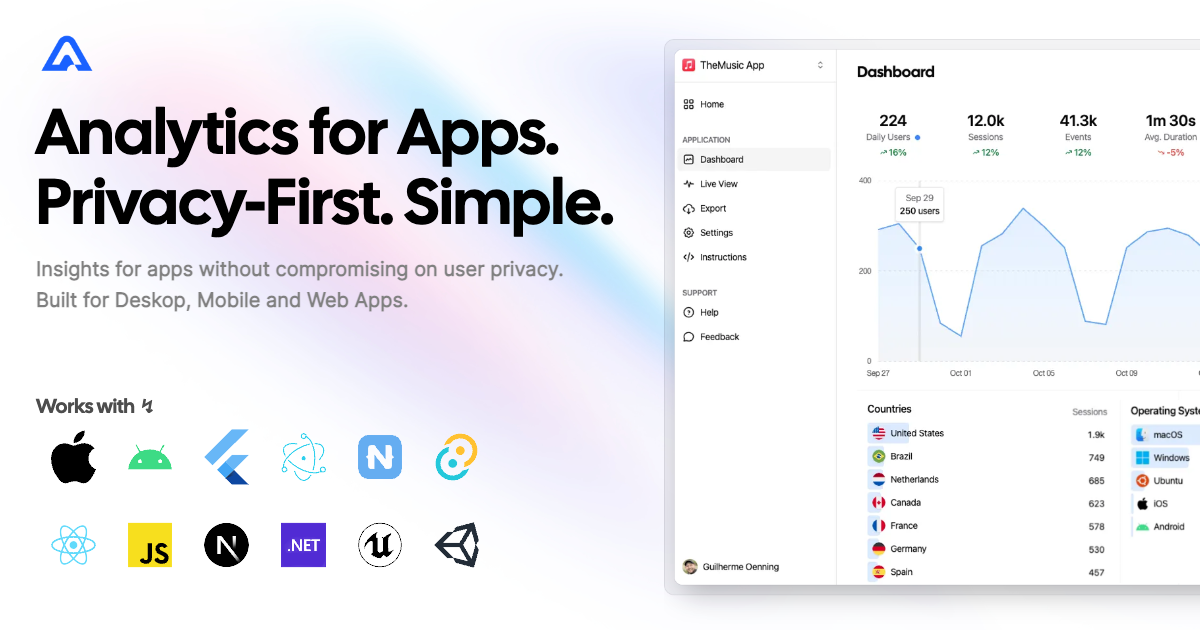


Instrument your apps with Aptabase, an Open Source, Privacy-First and, Simple Analytics for Mobile, Desktop and, Web Apps.
Start by adding the Aptabase NuGet package to your .csproj:
<PackageReference Include="Aptabase.Maui" Version="0.2.0" />First, you need to get your App Key from Aptabase, you can find it in the Instructions menu on the left side menu.
Change your MauiProgram.cs to add Aptabase to the build pipeline:
public static MauiApp CreateMauiApp()
{
    var builder = MauiApp.CreateBuilder();
    builder
        .UseMauiApp<App>()
        .UseAptabase("<YOUR_APP_KEY>", new AptabaseOptions // 👈 this is where you enter your App Key
        {
#if DEBUG
            IsDebugMode = true,
#else
            IsDebugMode = false,
#endif
            EnableCrashReporting = true, // 👈 log app crashes, unhandled exceptions
            EnablePersistence = true, // 👈 persist events on disk before sending them to the server
        })
    ...
}
The UseAptabase method will add the IAptabaseClient to your dependency injection container, allowing you to use it in your pages and view models.
As an example, to track events in your MainPage, you first need to add it to the DI Container in MauiProgram.cs:
builder.Services.AddSingleton<MainPage>();And then inject and use it on your MainPage.xaml.cs:
public partial class MainPage : ContentPage
{
    IAptabaseClient _aptabase;
    int count = 0;

    public MainPage(IAptabaseClient aptabase)
    {
        InitializeComponent();
        _aptabase = aptabase;
    }

    private void OnCounterClicked(object sender, EventArgs e)
    {
        count++;
        _aptabase.TrackEvent("Increment");

        if (count == 1)
            CounterBtn.Text = $"Clicked {count} time";
        else
            CounterBtn.Text = $"Clicked {count} times";

        SemanticScreenReader.Announce(CounterBtn.Text);
    }
}
The TrackEvent method also supports custom properties:
_aptabase.TrackEvent("app_started"); // An event with no properties
_aptabase.TrackEvent("screen_view", new() {  // An event with a custom property
    { "name", "Settings" }
});
A few important notes:
- The SDK will automatically enhance the event with some useful information, like the OS, the app version, and other things.
- You're in control of what gets sent to Aptabase. This SDK does not automatically track any events, you need to call
TrackEventmanually.- Because of this, it's generally recommended to at least track an event at startup
- The
TrackEventfunction is a non-blocking operation as it runs in the background. - Only strings and numbers values are allowed on custom properties
Error reporting is in beta. Reports appear on the
Errorspage of your Aptabase dashboard.
Use TrackError to report errors you've caught and handled:
try
{
    await DoSomething();
}
catch (Exception ex)
{
    await _aptabase.TrackError(ex); // severity: error
}
For errors your app can't recover from, mark the report as fatal:
await _aptabase.TrackError(ex, fatal: true); // severity: fatalWith EnableCrashReporting set, the SDK also reports unhandled exceptions, unobserved task exceptions and crashes automatically — no extra code needed. Enable EnablePersistence alongside it so fatal crashes are stored on disk and delivered the next time your app starts.
Each report includes the exception type, message, stack trace, severity (error or fatal) and source (handled, unhandled, taskException or crash).
For AI/LLM integration instructions, see llms.txt