

Privacy-first meeting transcription & AI summary for macOS
Features • Screenshots • Installation • Requirements • Build • Contributing • License



Plan named meetings, set start and end (or start + duration), and Scripta auto-starts and auto-stops capture while the app is running — still 100% on your Mac. Sessions are saved with titles in history (not just timestamps). Overlapping schedules are blocked; scheduled runs do not pop the summary sheet automatically (summarize manually when you want).


Open the scheduler → add a meeting → Scripta records automatically at start time (app running, permissions granted).
Release notes v3.4.7 · Feature details · Install

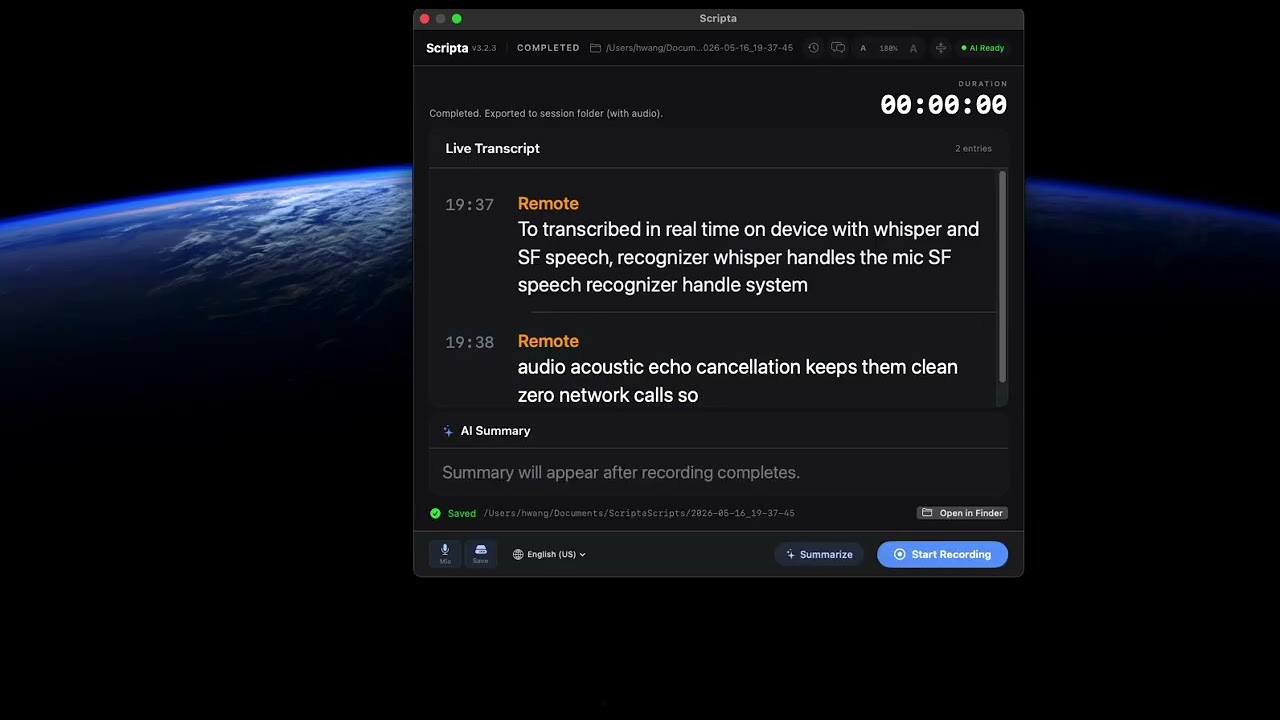
▶ 90-second walkthrough: dual-channel capture → local AI summary
Scripta is a native macOS app that captures both your microphone and system audio during meetings, transcribes them in real-time, and generates AI-powered summaries — all running 100% locally on your Mac. No cloud. No subscriptions. No data leaves your machine.
- Mic transcription powered by whisper.cpp (Metal-accelerated, on-device)
- System audio transcription via Apple
SFSpeechRecognizer(on-device) - AI summaries & chat via Ollama (local LLM)
Scheduled recordings (v3.4.7+)
- Toolbar calendar icon or menu Scheduled Recordings… — list upcoming meetings, Edit / Cancel, status labels (e.g. Pending, Recording now)
- New schedule sheet: meeting name, start & end or duration, language, optional notify if app is not open at start time
- Auto-start and auto-stop while Scripta is open and Screen Recording / mic / speech permissions are already granted
- No overlapping schedules; conflict dialog if a manual recording is already running at start time
- Named sessions in history (
session.jsontitle) — search by meeting name, not only timestamp - Awake toggle (bottom bar): optional idle system + display sleep prevention during recording/transcription
- Scheduled completions skip the auto-summary panel — summarize from history when you want
Dual-Channel Real-time Transcription
- Mic ("You") via whisper.cpp — 100% local, Metal-accelerated on Apple Silicon
- System audio ("Remote") via Apple on-device speech recognition
- Supports 10+ languages (English, Chinese, Japanese, Korean, Spanish, French, German, and more)
- Mic mute button — instantly pause/resume mic recording during a session
AI-Powered Summaries
- Local AI summaries powered by Ollama
- Key points + action items extraction
- Streaming responses displayed in real-time
AI Chat Panel
- Ask questions about your meeting transcript
- Multi-turn conversation with context
- Works during recording or on completed sessions
Live Translation (macOS 15+)
- Real-time bilingual transcript using Apple Translation framework
- Context-aware translation for improved quality
Meeting History
- Browse and search all past sessions
- View transcripts, summaries, and re-generate with AI
- Audio recordings saved alongside transcripts
- Sessions stored in
~/Documents/ScriptaScripts/
Two Display Modes
- Full mode: complete UI with transcript, summary, chat, and controls
- Minimal mode: floating live captions bar — stays on top while you work
Privacy by Design
- All processing happens on your Mac
- No internet connection required (except for initial model downloads)
- No account, no telemetry, no tracking
Empty scheduler — click Add schedule or the + button.
Set name, window, language, and whether to notify you if Scripta is not open at start time.
Upcoming list with status — at start time Scripta auto-records; use Retry start if permissions were fixed after the slot began.
Grant Screen Recording, Microphone, and Speech Recognition in Permissions Setup before the meeting window so auto-start does not interrupt you with system dialogs.
Live dual-channel transcription with bilingual translation. The "Remote" channel captures system audio from any meeting app (Teams, Zoom, Meet, etc.) while "You" captures your microphone via whisper.cpp.

After recording, generate an AI summary with key points and action items using a local Ollama model. The Ask AI chat panel lets you query your transcript in natural language.

Choose between Qwen 2.5 (fast, 1.8 GB) for everyday meetings or Gemma 4 (high quality, 7.2 GB) for hour-long sessions. Each row surfaces the model's true context window — Scripta now passes that value to Ollama via num_ctx, so a 60-minute meeting actually gets summarized end-to-end rather than the last five minutes. Recommended models can be pulled with one click.

A compact floating caption bar that stays on top of your other windows — perfect for following along during a meeting without switching apps.

Browse all past sessions with duration, entry count, and audio availability. Search transcripts and re-generate summaries at any time. Scheduled meetings appear by title when set.
- v3.2 + Gemma 4 writeup: "I asked Gemma 4 to summarize. It said the transcript looked truncated. It was right." — Dev.to Gemma 4 challenge
- Follow-up ablation: "Gemma 4 wrote three summaries in one response…" — harness in
benchmarks/calibration-ablation/ - Companion replication: @wildeconforce — Production Deployment of Gemma 4 on an 8GB GPU
curl -fsSL https://raw.githubusercontent.com/thehwang/Scripta/main/scripts/install.sh | bashThis single command will:
- Download the latest release for your macOS version
- Install
Scripta.appto/Applications - Install Ollama via Homebrew (if not already installed)
- Start Ollama as a background service
- Pull the default AI model (
qwen2.5:3b) - Download the Whisper speech model (
ggml-base.bin, ~142 MB) - Launch Scripta
curl -fsSL https://raw.githubusercontent.com/thehwang/Scripta/main/scripts/install.sh | SCRIPTA_INSTALL_GEMMA4=1 bashSame as above but also pulls Gemma 4 E2B (~7.2 GB extra). Recommended if your meetings frequently exceed 30 minutes — Gemma 4's 128K context window summarizes the full transcript in one pass with no chunking. The default qwen2.5:3b is still installed alongside, so you can switch between them anytime in Settings → AI Model.
- Download the latest
.zipfrom Releases - Extract and move
Scripta.appto/Applications - Clear quarantine:
xattr -cr /Applications/Scripta.app - Install Ollama:
brew install ollama && brew services start ollama - Pull a model:
ollama pull qwen2.5:3b - Launch Scripta — it will prompt to download the Whisper model on first run
| Component | Requirement |
|---|---|
| macOS | 14.0 (Sonoma) or later |
| Chip | Apple Silicon (M1/M2/M3/M4) or Intel |
| Ollama | Required for AI summaries and chat |
| Disk | ~2 GB for AI model + ~142 MB for Whisper model |
| Translation | macOS 15+ (Sequoia) for live translation |
git clone https://github.com/thehwang/Scripta.git
cd Scripta
make run
This will build whisper.cpp as a static library, build the app with Swift Package Manager, sign it with an ad-hoc certificate, and launch it.
Scripta/
├── Sources/
│   ├── Scripta/              # Main app
│   │   ├── AppDelegate.swift
│   │   ├── ContentView.swift        # Main UI (full + minimal modes)
│   │   ├── MeetingRecorder.swift     # Recording orchestration
│   │   ├── WhisperEngine.swift       # whisper.cpp integration for mic ASR
│   │   ├── SystemAudioCapture.swift  # ScreenCaptureKit system audio
│   │   ├── SummaryService.swift      # Ollama AI summary
│   │   ├── ChatPanel.swift           # AI Q&A sidebar
│   │   ├── HistoryPanel.swift        # Meeting history browser
│   │   ├── SchedulePanel.swift       # Scheduled recordings UI
│   │   ├── ScheduleCoordinator.swift # Auto-start/stop scheduler
│   │   ├── TranslationService.swift  # Apple Translation wrapper
│   │   ├── MeetingStore.swift        # Session persistence
│   │   └── ...
│   ├── ScriptaCore/          # Shared types (TranscriptEntry, logging)
│   └── CWhisper/             # whisper.cpp C bridging (systemLibrary)
├── benchmarks/               # Reproducible model + context-window benchmarks
│   ├── synthetic-transcript.md  # Fixture: 60-min fictional all-hands meeting
│   └── findings.md           # Qualitative analysis of each model's output
├── demo/                     # Hammerspoon automation that drives the UI
│   ├── scripta-demo.lua      # through the v3.2 launch demo (timing-synced
│   └── README.md             # to a pre-recorded voiceover for repeatable takes)
├── screenshots/              # App screenshots for README
├── scripts/
│   ├── install.sh            # One-line installer
│   └── benchmark_models.sh   # Run any installed Ollama model against fixture
├── Resources/
│   └── AppIcon.icns
├── Makefile                  # Build, install, deploy targets
└── Package.swift
Scripta requires the following macOS permissions (prompted on first launch):
- Microphone — to capture your voice
- Screen Recording — to capture system/meeting audio via ScreenCaptureKit
- Speech Recognition — for on-device transcription
Recording Disclaimer: Recording conversations may be subject to local, state, or national consent laws. Many jurisdictions (including parts of the United States, Canada, and the European Union) require all participants to be informed and to consent before a conversation is recorded. You are solely responsible for complying with all applicable laws when using this software. Scripta does not record by default — recording is explicitly initiated by the user. The developers of Scripta assume no liability for misuse or non-compliance with recording consent laws.
Privacy: Scripta processes all audio and transcription data entirely on your device. No audio, transcript, or personal data is transmitted to any external server. AI summaries are generated locally via Ollama. The only network activity is the one-time download of AI and speech models.
MIT — free for personal and commercial use.
Made with ❤️ on a Mac